

My Claude Code for Customer Insights course is running from Oct 19th. If you want to get personal, hands-on help from me to improve your Claude insights skills and full workflows, it’s likely your last chance for 2026.
If you’re using Claude Code, Codex or Cursor and your client work, your tax return and your kids’ photos coexist on the same laptop, this edition is for you.
I keep hearing one question from readers, from clients, in comments:
How do you use Claude Code or an AI that has access to basically everything while considering your personal privacy, and not sharing information it shouldn’t have?
If you’re using file-based AI systems, you might be sharing information you don’t really want AI to have. It’s hard not to. My Claude Code is in all my files, my Dropbox, my desktop. And no one I know has the perfect setup of four computers and work-life separation across them to avoid that. There’s definitely no clean line between work and life on a freelancer’s computer. Maybe you’re employed, but working on an AI-assisted side hustle next to doing your income taxes and editing vacation pictures on your personal Mac. Do you know what your agents can see?
Whether you have one computer for everything or a bonus one loaned by an employer, often the AI workflow you launched this morning to do one task can read another files pile you wouldn’t approve if it asked you for permission from scratch.
We’re all watching everyone’s demo videos where they show us their whole-life OS magically handle everything for them. But holy moly, the privacy implications of that are massive — too big to cover it all today — and that rarely makes the YouTube demo cut.
Before overwhelm sets in, I want to show you what you can control today: decide which information never goes into AI, what an agent is blocked from opening, and how to lock up private docs in inaccessible folders when you’re not using them. If you do this alongside, it takes 20-30 minutes.
In this edition:
🏕️ What your agent can reach right now: the folder you start in, the connectors that follow you into every project, and what leaves your laptop
🗺️ Five ways to decide what AI can reach: from a ten-minute list to a locked folder nothing can open, plus a video of me setting up two tactics and testing them
🏕️ BASE CAMP
What your agents can reach right now
On a one-laptop setup there are three doors:
1: The folder you start up in.
With Claude Code, Codex or Cursor, you start a session from a folder, and everything inside it is open, agent-accessible. When I start a Claude Code terminal session from the top of my computer (e.g. /Users/caitlin), it can read everything, without asking. Start it in my COURSES/ folder and it reads what’s in COURSES/.
Outside that folder, two things can happen. When Claude opens or searches a file itself, it asks you first. But Claude can also run one-line commands, the kind that list a folder or print a file to the screen. Those run on any folder without asking, in every mode, until you turn on the setting in tactic 2 below.
So if you usually start Claude in your home folder, all of it counts as inside. Start up in a project folder instead.
2: The connectors that follow you into every project.
Connectors are the links you add on claude.ai or in terminal that let Claude use another app: Gmail, Google Drive, Notion, Slack, Linear. Log in with a Claude subscription and those connectors show up in every Claude Code project. So the session analyzing a client’s interviews can also reach your personal inbox, until you turn that off. Type /mcp in a session to see the list and switch off what this project doesn’t need. That switch only covers the project you’re in.
3: What leaves your laptop.
Every file Claude reads gets sent to Anthropic, the company that runs the model, so the model can work on it. That’s true with or without the settings below. On Free, Pro and Max plans, whether your data trains future models is your call: open claude.ai/settings/data-privacy-controls and decide on purpose.
🗺️ THE ROUTE
Five ways to decide what AI can reach
In a hurry? There’s a video of me setting up multiple tactics in one go, with one prompt, start to finish: the folder list deny rules, then the sandbox. Skip to #4 below then read about each tactic so you know what we’re doing here.
Each tactic covers something the one before it doesn’t. But you don’t need all five: pick the ones that match what you feel is most important to protect.
Tactics 1 and 5 work in whatever tool you use. Tactics 2, 3 and 4 are Claude Code’s settings. If you’re on Codex or Cursor, the nearest equivalents are at the end of tactic 4.
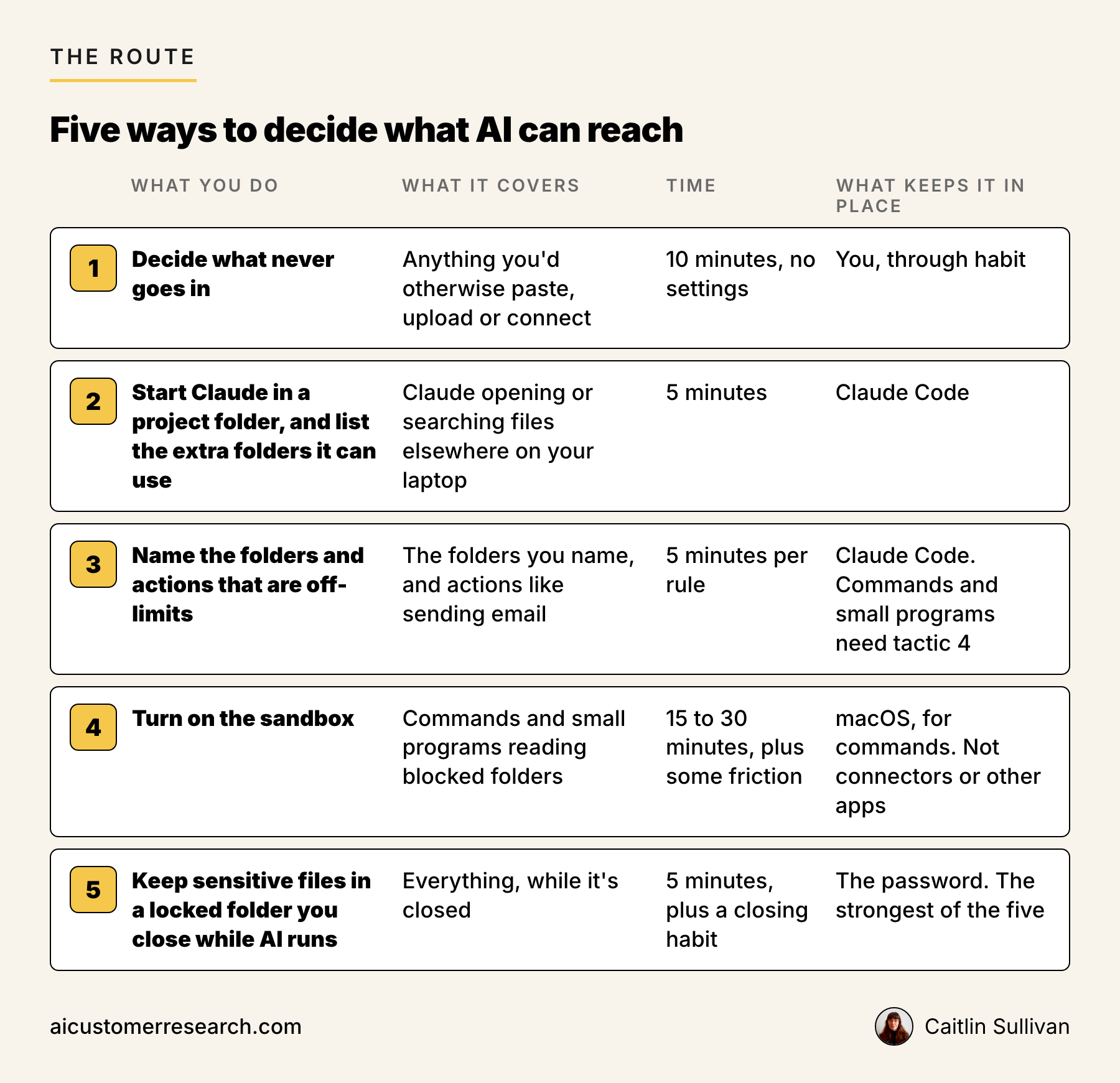
1. Decide what never goes in
The first tactic needs no settings, just a decision about what you are willing to paste, upload or connect. It’s a list, and not a task for AI: only you can write it!
Here’s part of mine:
AI reads my emails ✅
It doesn’t write or send any ❌
Sorting and summarizing is useful. Telling me what needs an urgent response helps me not get lost in newsletters when I open my inbox and not miss as many important requests. But writing a personal reply to someone I know or who is forming a relationship with me, and pressing send, is my task.
I often ask myself: is that an AI task or step I could undo? If NO, it’s a good one to keep for yourself.
If you connect Gmail, you can make those requirements a setting rather than a habit. In your settings file (settings.json, modified in Claude Code by typing /permissions) you can name a connector’s send action as off-limits, so it’s unavailable in every mode. Type /mcp in a session to see the exact names for your account. For Gmail, the line looks like this:
"permissions": {
  "deny": ["mcp__claude_ai_Gmail__send_message"]
}
Scheduled routines always get trimmed. A routine is a job Claude runs on its own, on a schedule, in Anthropic’s cloud instead of on your laptop. But your settings file stays on your laptop, so it never reaches the routine. By default a routine includes every connector you’ve connected, and it can use them without asking. When you create a routine, remove the connectors it doesn’t need.
AI helps with my taxes. It does not have my tax IDs. Working through a return needs my bookkeeping data, not my social security number. (More on how I keep the tax numbers out in tactic 5.)
My kid’s name and birthdays stay out. Names and birthdays are classic answers to account security questions, and they rarely make an AI task any better. Any personal information like this that I can keep out stays out.
If you’re writing your own list, a few candidates worth considering:
Passwords, recovery codes and two-factor authentication (2FA) codes, even for a quick formatting task
Customers’ full names, emails and phone numbers. Swap in P01, P02 before data is accessible and used in AI work
Details about clients, their names and PII
ID numbers: passport, social security, tax IDs, pension details
Split your list in two: things AI never sees, and things AI never does on your behalf. A simple overview of my never does list: sending, paying, identifying, deleting, posting.
〰️
2. Start Claude in a project folder, and list the extra folders it can use
Your list is a habit. Settings are enforced.
Your CLAUDE.md file is the context sheet Claude reads at the start of a session. A line in it saying “never read my Finance folder” will affect what Claude tries to do. But access is really a settings job: permission is enforced by the settings in whatever app you’re using, not by the model.
The simplest setup never names the folders you want kept out. It closes everything outside the folder you started in, then lists the few exceptions you do want reachable. Add this to your settings file at ~/.claude/settings.json (the ~/ means in your home folder), with your own folders in it:
{
  "permissions": {
    "blockReadsOutsideWorkingDirectories": true,
    "additionalDirectories": [
      "/Users/<you>/Clients/Client-A"
    ]
  }
}
blockReadsOutsideWorkingDirectorieskeeps Claude from reading anything outside the folder you started it in, in every mode, and makes one-line commands ask you first.additionalDirectorieslists the few folders you still want Claude to reach from any project.
Start in a project folder first. If you start Claude in your home folder and almost nothing counts as outside, this setting has nothing to block.
If you already have a settings file, put these lines inside the outer { } that’s already there, instead of pasting them at the end. A second block after the last } makes the file unreadable, and Claude Code then ignores everything in it, including the rules that were working yesterday.
〰️
3. Name the folders and actions that are off-limits
When you know exactly what’s off-limits, name it. These lines go in the same settings file, in a list called deny. A first try at keeping Claude out of Dropbox often looks like this:
{ "deny": ["/path/to/your/Dropbox"] }
It needs two fixes. The deny list has to sit inside "permissions". And a folder path on its own isn’t a rule.
Each line starts with the action you’re blocking: Read(...) for opening a file, or Edit(...) for changing one.
On my Mac, Dropbox lives at ~/Library/CloudStorage/Dropbox. (~/Dropbox is usually a shortcut pointing there.) The version that works for that is:
"permissions": {
  "deny": [
    "Read(~/Library/CloudStorage/Dropbox/**)",
    "Edit(~/Library/CloudStorage/Dropbox/**)"
  ]
}
~/ means your home folder, and ** means everything inside it. If you work in Dropbox with Claude, add one subfolder that’s off-limits instead of all of Dropbox.
This covers Claude opening a file itself, changing or creating files there, one-line commands that name the file, like the one that prints a file’s contents to the screen, and, in most cases, searching. It doesn’t cover a program Claude writes (that’s tactic 4), a command that reads the folder without naming a file in it, like a search run from inside it, your connectors and scheduled routines, or other apps like Codex, Cursor and the AI features inside Dropbox. Codex and Cursor get their own note at the end of tactic 4.
Three details decide whether a rule works:
Two actions protect files: opening and changing.
Read(~/Work/**)andEdit(~/Work/**)get checked.Lines like
Write(~/Work/**)orGlob(~/Work/**)are accepted but never checked, so swap them forReadandEdit.
One slash vs. two.
A full path from the top of your drive starts with two slashes:
//Volumes/....A single slash at the front points inside
~/.claude/and matches nothing, with no error message.
A blocked folder can’t have exceptions. In Anthropic docs’ words, “An allow rule can’t carve an exception out of a deny rule.” If you block all of Dropbox, you can’t re-open one folder inside it.
Test this: type /permissions in a session. It lists every rule and the file it came from. If a rule isn’t on that list, it isn’t active yet.
〰️
4. Turn on the sandbox, so the rules cover commands and small programs too
Tactics 2 and 3 cover Claude opening files itself, and one-line commands that name a file. One thing is still left: when agents run a script. A script is a short program Claude writes and then runs to get a job done, like sorting a pile of files. When a script opens a folder, the rules in tactic 3 never see it, and don’t block it.
That’s what the sandbox is for. The sandbox is a boundary macOS puts around every command Claude runs, and around any program those commands start. If your settings are Claude’s house rules, the sandbox is the lock macOS puts on the door.
It doesn’t cover Claude opening files itself, which your settings handle, and it doesn’t cover connectors, automatic triggers, or commands you type yourself after !.
Two lines turn it on, added in the same settings file we used before:
"sandbox": {
  "enabled": true,
  "allowUnsandboxedCommands": false
}
With the sandbox on, the folders you named in tactic 3 are blocked for scripts too. allowUnsandboxedCommands: false stops Claude from trying a blocked command again outside the sandbox.
The sandbox doesn’t decide what’s private. What it enforces is the list you already wrote, plus whatever tactic 2 fences off.
Anthropic’s own words: “Sandboxing reduces risk but is not a complete isolation boundary.” It makes a blocked folder much harder to reach by accident, or by a session that goes off track. It doesn’t put it out of reach. (That’s tactic 5).
On Windows: the sandbox doesn’t run there, only inside WSL2, a full Linux that runs inside Windows. Tactics 2 and 3 still work, because Claude Code enforces those itself, but nothing catches a program Claude writes. So on Windows, tactic 5 does the heavy lifting.
Watch me set it up. The demo: a Dropbox folder that syncs to the cloud ends up blocked, with two folders inside it still usable.
Have Claude set up all three at once, like in the video
Tactics 2, 3 and 4 above all live in the same file, so you can hand the whole job to Claude and check its work.
First, get your folder paths. Do that for the folder you want closed, and for any folder inside it that Claude should still use.
Then start a Claude Code session and paste this, with your own paths swapped in:
Update my user settings file at ~/.claude/settings.json. Add to it, don't replace anything.

1. First, make a backup copy at ~/.claude/settings.backup.json.
2. Keep every existing setting, deny rule and hook exactly as it is.
3. Inside the existing "permissions" block, add:
   "blockReadsOutsideWorkingDirectories": true
   "additionalDirectories" with these paths:
     [FOLDER CLAUDE SHOULD STILL USE]
     [ANOTHER FOLDER CLAUDE SHOULD STILL USE]
4. Add a new top-level "sandbox" block:
   "enabled": true
   "allowUnsandboxedCommands": false
   "filesystem" with:
     "denyRead": ["[FOLDER YOU WANT CLOSED]/"]
     "allowRead": ["[FOLDER CLAUDE SHOULD STILL USE]/", "[ANOTHER FOLDER CLAUDE SHOULD STILL USE]/", "~/.claude/skills/"]
5. If any of these keys already exist, merge into them instead of creating duplicates.
6. Show me exactly what you're adding before you save.
7. After saving, confirm the file is still valid JSON.
You might have to quit Claude Code or at least launch a new session to make sure the new settings are loading if you test and find that your new barriers aren’t working yet.
〰️
What happened when I tested this setup on my own Mac
Simply, the block held on every route I tried.
Prove it on yours. Make a test folder with a junk file in it, block it, restart Claude Code, and ask Claude to run this with your own file path replacing mine below:
python3 -c "import os; print(os.listdir('/Users/<you>/AI-block-test'))"
PermissionError: Operation not permitted means the sandbox is holding. A file name or more details means it isn’t really.
If you’re on Codex or Cursor
Tactics 2, 3 and 4 are Claude Code’s settings, and they don’t carry across. Here’s the nearest thing each of the other two has, and where it stops.
Codex asks you to pick a mode: read-only, workspace-write, or full access. Those decide what it can change, and whether commands can reach the internet. None of them limit what it can read. Read-only means it can’t edit without asking, not that it can’t look. Blocking reads is a separate feature, a named permissions profile, where you list a path and set it to deny. It’s in Codex’s config reference under permissions, and the docs say not to combine it with the mode setting.
Cursor has .cursorignore, a file listing what its agent should leave alone. It covers Cursor opening or referencing those files itself. It doesn’t cover the connector tools the agent runs, and the docs say so: those “cannot block access to code governed by .cursorignore.”
An ejected encrypted image doesn’t care which tool is asking, it just keeps it out.
〰️
5. Keep sensitive files in a locked folder, closed while AI runs
I’ve gotta be honest. I’ve never encrypted anything on my computer until now. I’d never felt the need until I wanted to do things like get AI to fill in tax docs for me faster - without knowing all my personal tax numbers across three countries.
It’s the same as my no-cards, no-banks rule: AI does the filling-in-fields work, the sensitive numbers stay out of it, I can fill those in myself. This takes about 5-7 minutes even if you’re doing it for the first time.
Why take this additional step? Claude Code runs on your computer as you. In many cases anything you can open, it can open. An encrypted disk image changes that. If deny rules are a big fence your neighbor can’t see over, this is the American Embassy in Berlin, a massive stone city block with a security team. When it’s ejected, nobody can read what’s inside, not Claude and not any other app. Not even you, if you forget your password. But when it’s open, every program running at that moment can potential read it, including any AI.
→ Open it, use it, eject it.
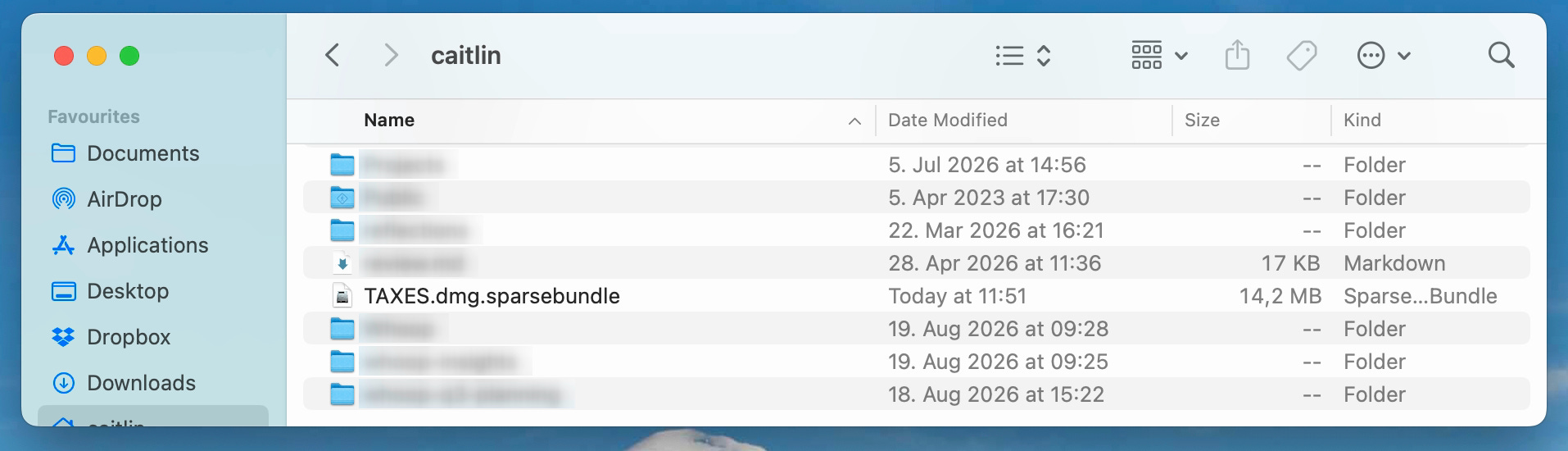
My encrypted Taxes folder looks like this when not in use. When I open it, it sits in the left folders panel like a connected device.
Setting it up on a Mac
Take or create a folder of docs you’d want to encrypt.
Note the folder’s size and item count. You can see size by selecting it in Finder and press Cmd-I (Get info).
Open Disk Utility and choose File > New Image > Blank Image from the menu bar at the very top of the screen (next to the apple symbol), not the toolbar in the window.
Fill in the form:
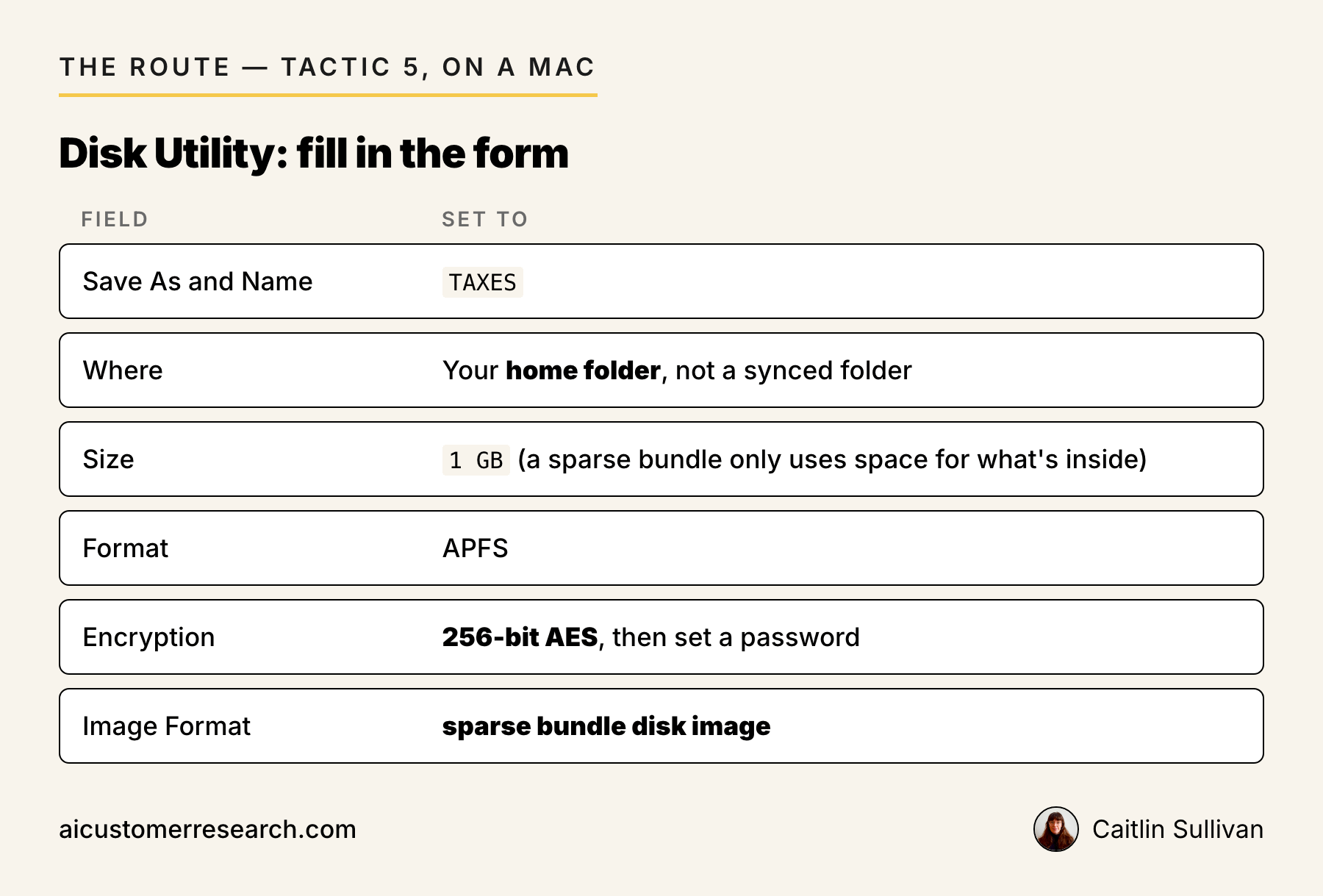
Continue…
Save the password somewhere safe. There’s no recovering it.
Drag your private files into the open folder, shown as an external drive like my TAXES on the left panel below
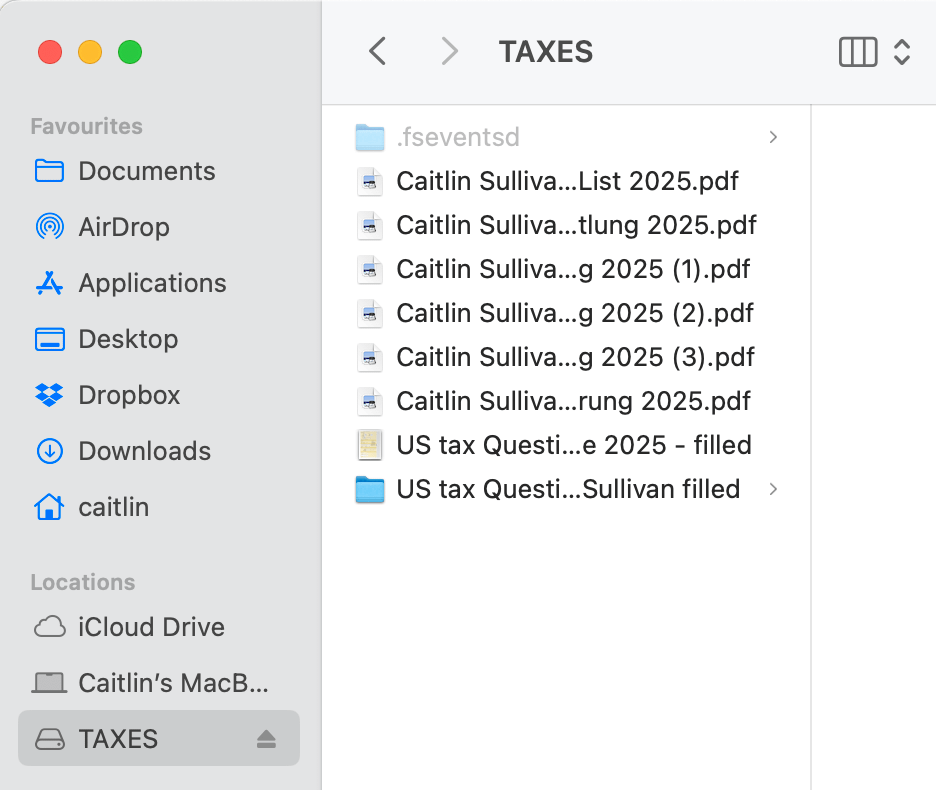
Eject it, then test. Double-click the closed image again (like my TAXES.dmg.sparsebundle in the previous screenshot): it should ask for your password. I’d recommend leaving “Remember password in my keychain” unchecked, or any program running as you can open it without asking.
Delete the unprotected original file set once you’re done, and back up the ejected image to an external drive or Time Machine.
Keep it in your home folder, not Dropbox or iCloud. This kind of image is many small files that change while it’s open, and a sync landing mid-change can corrupt it.
While you’re at it, search Downloads and email attachments for stray copies with names like “tax,” “contract” or “passport,” and move them in.
For the days you forget to eject
An open image is plain, readable files. So add a backstop: name the open image as off-limits in your settings. I added these two lines to my own ~/.claude/settings.json today:
"deny": [
  "Read(//Volumes/TAXES/**)",
  "Edit(//Volumes/TAXES/**)"
]
Two slashes at the front, and TAXES is whatever you typed in the Name field. The rule catches Claude and one-line commands. A program Claude writes still gets through unless the sandbox is on, so ejecting is what does the work.
The one thing the encrypted image route can’t fix. Every file Claude reads while it’s open also lands in your session transcript, in plain text, in ~/.claude/projects/, where it stays for 30 days. The solution is to shorten the window where you have the folder of private files open, and stop AI processing during that time.
On Windows
Cryptomator does the same job on Windows. It’s free, open source, and audited. You make a vault, which is a folder with a password: unlocked it appears as a drive, locked there’s nothing readable in it.
I hope this helps you get control over privacy in at least part of your agent use today.
Keep moving.
— Caitlin
If you’re new to me:✌️ Hey, I’m Caitlin. I help product, design, and insights folks do better customer research with AI—without the hype. Thanks for being here.